This guide explains the functionality of the Attachments system, which allows users to link digital media to database records. It details how the Web Asset Server manages these files externally and outlines methods for adding attachments.
Specify provides a robust system for attaching digital media and documents to your collection data records. These attachments are managed through a dedicated service called the Web Asset Server / Attachment Server.
An attachment is any digital file linked to a specific data record to provide supplementary information or media. This could be a photograph of a specimen, a scanned permit document, a field notes PDF, or an audio recording. Instead of storing the file directly in the database, which would make it large and slow, Specify saves the file to a dedicated Web Asset Server and stores only a reference to that file in the database record.

Bentley A, Osborn R (2025). Snow Entomological Museum Collection. University of Kansas Biodiversity Institute. Occurrence dataset https://doi.org/10.15468/fhntpy accessed via GBIF.org on 2025-09-25. https://www.gbif.org/occurrence/1502546680
You can attach any file type to a record, but common examples include images, videos, audio files, PDFs, and spreadsheets. There are no restrictions on file size.
Where Can Attachments Be Added?
Attachments can be linked to records in many of the most frequently used tables, including:
- Accession
- Agent
- Borrow & Loan
- Collecting Event
- Collection Object
- Preparation
- DNA Sequence
- Field Notebook
- Gift
- Locality
- Permit
- Reference Work
- Storage
- Taxon
On The Data Entry Form
[!info]
Before modifying the data entry forms, please read Editing Forms in Specify
To add an attachment to a record, you must include the attachments subview in a compatible table. This can be displayed as either a button or a traditional subview.
Within the subview definition, the initialize attribute contains a section that specifies the table name (e.g., CollectionObjectAttachment). Replace CollectionObject with the name of the table to which you want to add attachments, and change the field name (e.g., collectionObjectAttachments) to the correct relationship field name for Attachment (e.g. accessionAttachments and Accession).
Button
The most common way to display attachments on a form is through a button. This method lets you quickly see the number of attachments linked to a record while still allowing you to click the button to preview all the attachments in a dialog.

<cell type="subview" id="attachments" viewname="ObjectAttachment" name="collectionObjectAttachments" initialize="btn=true;icon=CollectionObjectAttachment" colspan="2"/>
Subview
Attachments can also be embedded in the form in using a traditional subview display, which allows you to see all attachments in a scrollable list. You can view the metadata by clicking on the  (expand) button to the left of the attachment.
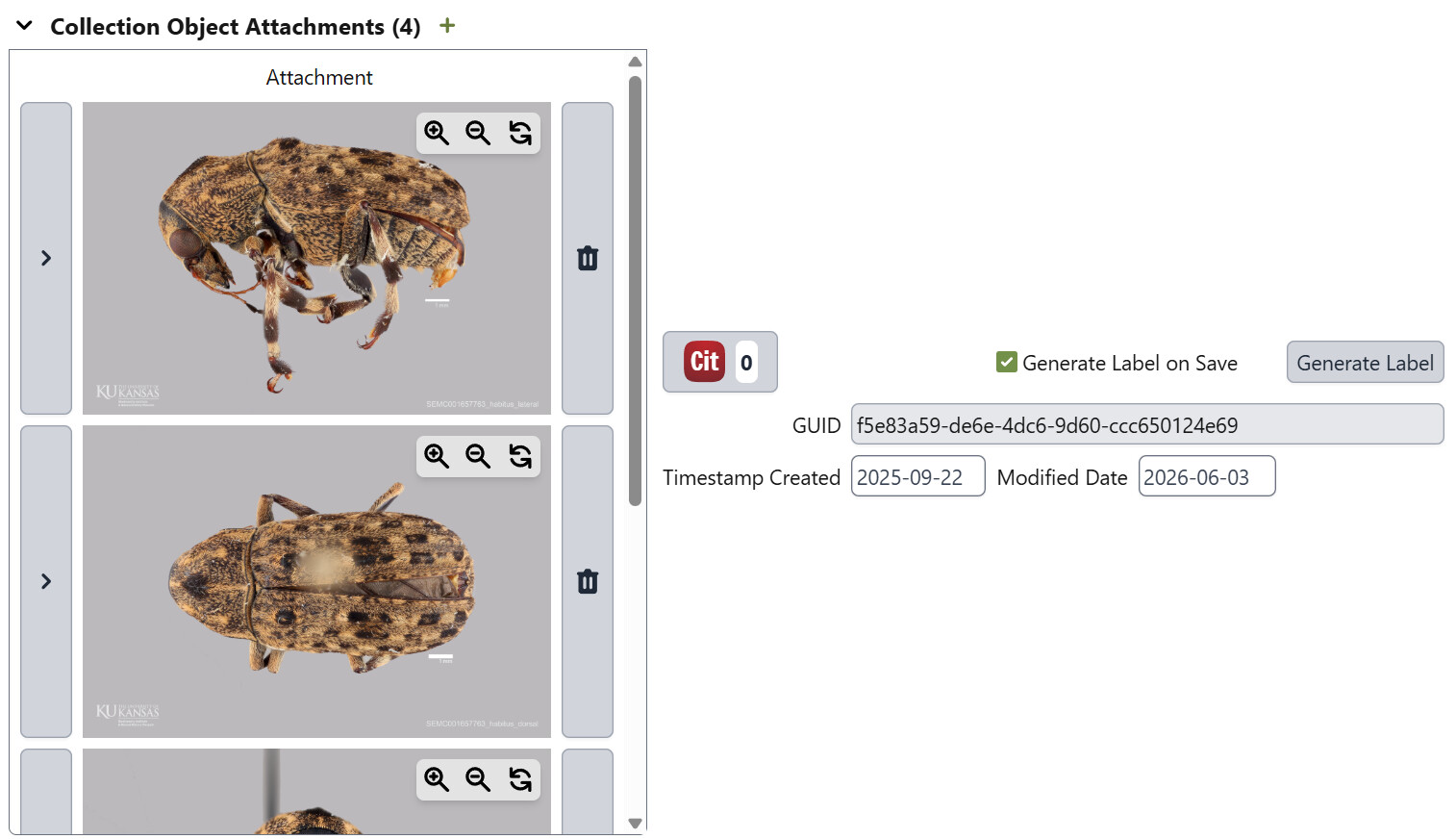

<cell type="subview" id="attachments" viewname="ObjectAttachment" name="collectionObjectAttachments" colspan="5" initialize="icon=CollectionObjectAttachment" defaulttype="table"/>
Selecting a file

After clicking the plus icon ( ) in the header of the attachments subview, you can either drag files directly into the box or click on it to select a file from your file manager. Once selected, an attachment record will automatically be created.
How to Add Attachments
There are several ways to add attachments to your records, depending on your workflow:
- Through the User Interface: You can drag and drop files directly onto the attachment panel in any record form that supports attachments.
- Batch Attachment Uploader: For adding many attachments at once based on matching catalog numbers or other identifiers in the filenames, the Batch Attachment Uploader is a powerful tool.
- WorkBench: You can import images first, then add new data to the corresponding rows. WorkBench Attachments allows you to view images alongside data entry.
- Via the API: Attachments can also be uploaded programmatically using the Specify 7 API. For more details, please see our guide on Uploading Attachments via API.
- Via SQL: In some circumstances, when adding many thousands of attachments, attachments can be linked to files on a server by following this guide on Linking Attachments via SQL
Attachment Metadata
When you upload a file, Specify creates an Attachment record to store information about the file. This helps you manage copyright, usage rights, and other important details. For image files, Specify will automatically attempt to import any existing EXIF metadata.
Key metadata fields include:
- Title: A descriptive title for the attachment (defaults to the original file name).
- OrigFilename: The original name of the file when it was uploaded (e.g.,
IMG_2025.JPG). - AttachmentLocation: The auto-generated filename after it was uploaded for internal use (e.g.,
dd3182d1-0796-49b5-b074-0a305a44f370.jpg). - CopyrightHolder and CopyrightDate
- Credit: This connects the creator responsible for the attachment, see http://purl.org/dc/terms/creator.
- License: See http://purl.org/dc/terms/license.
- IsPublic: A flag to indicate if the attachment can be shared publicly.
- Remarks: For any general notes.
For more specialized needs, you can add custom metadata using the Attachment Metadata table, which supports extensible key-value pairs. This can be done via a Workbench upload after the attachments have been created.
How Attachments Are Stored and Accessed
It’s important to understand that the files themselves are not stored inside the Specify database. Instead, they are managed by the Web Asset Server.
When you upload a file, Specify does the following:
- Assigns a unique internal filename to the file to prevent naming conflicts. This unique name is stored in the
attachmentLocationfield of theAttachmentrecord. - Copies the file to a designated storage directory on the server, typically in a sub-folder named
originals. - Stores the metadata about the file (like the
OrigFilename,Title, etc.) in theAttachmentrecord within the database.
This separation means your database remains fast and easy to back up, while the files are stored efficiently on the server’s file system.
You can learn more in our detailed guide:
Thumbnails
For quick previews in the user interface, Specify generates thumbnails for certain file types.
Supported Filetypes for Thumbnails
While any file type can be attached, thumbnails and in-browser previews can currently be generated for:
- JPEG
- GIF
- PNG
- TIFF
For other file types, Specify will display a generic placeholder icon until the full resolution attachment is viewed.
How Thumbnails Are Created
Thumbnails are generated on-demand. The first time a user views an attachment that needs a thumbnail, the Web Asset Server creates it and saves it to a thumbnails directory on the server. The next time it’s requested, the saved thumbnail is served immediately.
The default preview size for thumbnails is 123x123 pixels, but this can be changed globally by modifying the attachment.preview_size key in the App Resources.
Backing Up Your Attachments
Because attachments are stored on the server’s file system, they are not included in the standard Specify database backup (.sql file). Your server administrator must have a separate backup procedure in place for the attachment storage directory to ensure your digital media is protected. If you are hosted on Specify Cloud, the current backup policy is defined here.