Uploading Interactions Using the WorkBench
Interactions can be uploaded using the WorkBench. We recommend backing up your Specify database before uploading data with the WorkBench.
This process is only recommended for users that are familiar with using the WorkBench and creating interactions. To learn more about interactions, read the article Interactions in Specify. For information about the WorkBench, read the article The Specify 7 WorkBench.
[!caution]
We recommend backing up your Specify database before uploading data with the WorkBench.
Required fields
When uploading interactions with preparations, in addition to any schema required fields (Loan Number, Gift Number), the following fields must be mapped in the WorkBench to avoid errors.
In the Preparation table:
- Catalog Number or GUID
- Preparation Type
- Count
In the Gift Preparation/Exchange In Preparation/Exchange Out Preparation/Disposal Preparation table:
- Quantity
In the Loan Preparation table:
- Quantity returned
- Quantity resolved
The following fields from the Loan Return Preparation table if a preparation has been returned or resolved:
- Quantity
- Quantity returned
- Quantity resolved
Here is an example of the WorkBench mapping for uploading loans with preparations that have been returned and resolved.
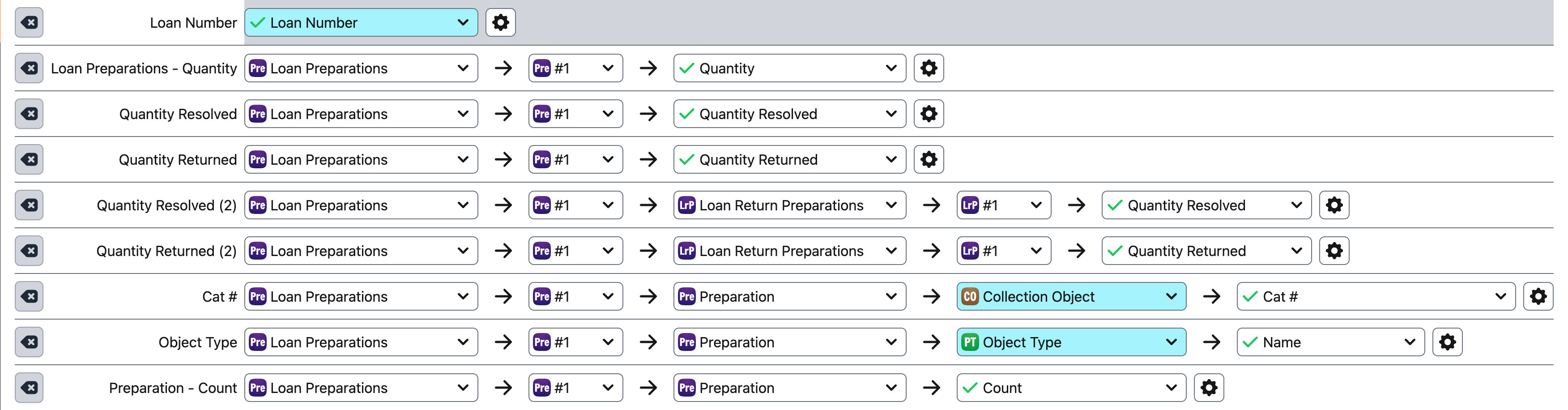
Uploading Loans
The WorkBench compares the count of available preparations (reflected by the actualCountAmt field) to the quantity of Loan Preparations. Because of this, we recommend uploading loans before creating Disposals, Gifts, or Exchange Outs, as these can reduce the count of available preparations. If you upload a loan after these changes have been made and the count of preparations to be loaned exceeds the count of available preparations, you will not be able to upload the Loan information.
If you are uploading loans with more than one preparation, you must use Loan Preparation as the base table. It is also crucial to ensure that each field correctly follows Specify’s usual business logic. Make sure your data follows the following rules.
For preparations that have not been returned or resolved:
- The quantity of a loan preparation must not exceed the actualCountAmt of a preparation.
- Quantity Resolved and Quantity Returned in the Loan Preparation table must be populated. If a preparation has not been resolved or returned, the value should be 0. If the field is not populated, the WorkBench will produce a validation error.
- Leave Quantity Resolved and Quantity Returned in the Loan Return Preparation table empty.
For preparations that have been returned or resolved:
- If a preparation has been returned, it must also be marked as resolved.
- If a preparation has been returned, the Quantity Resolved and Quantity returned fields must both be populated with the same value.
- If a preparation has not been returned, leave Quantity Resolved and Quantity Returned in the Loan Return Preparation table empty.
- Quantity Resolved and Quantity Returned must not exceed the quantity of loan preparations.
- Loans with all preparations resolved will not automatically be closed. If needed, set the Is Closed field to true.
Uploading Other Interactions
When uploading other interactions, use Exchange In Preparation, Exchange Out Preparation, Disposal Preparation, or Gift Preparation as the base table. The rest is not as complicated as loans–just make sure the quantity does not exceed the count of available preparations.
Existing Preparations
If you are uploading Loans that reference existing Collection Objects, the WorkBench will automatically match existing preparations based on the data provided for fields in the Preparation table.
If you are referencing a Collection Object that has multiple preparations with the same Prep Type and Count values, be sure to add other fields with distinguishing data (e.g. barcode) that can help the WorkBench match to the correct Preparation.
If you are referencing an existing Collection Object but would like to create a new Preparation, set the Matching Behavior to ‘Always Ignore’ for each field in the Preparation table.